
WiFi Syncing FAQ
This FAQ is designed to handle iSyncr WiFi frequently asked questions and provide detailed solutions. It will cover the following topics:
I downloaded and installed the iSyncr Desktop application to my computer from your website, but I can not open it?
Are you sure it is not already running? iSyncr Desktop runs either in the system tray in the bottom right corner of your screen (Windows) or in the main menu bar in the top right of your screen (Mac OS), where you should see an S icon where you can access your server settings. On Windows, sometimes the icon is hidden by an upward arrow.
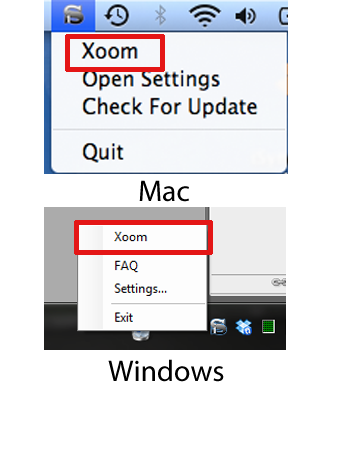
Right click this icon to toggle settings or options, check for updates and view the FAQs.
How do I connect over WiFi?
After you have determined that the iSyncr Desktop is running on your computer, connect to it from the iSyncr app on your Android just by clicking on the WiFi tab. If auto-discovery is working properly, your computer should show up in the list and you should be able to click on it.
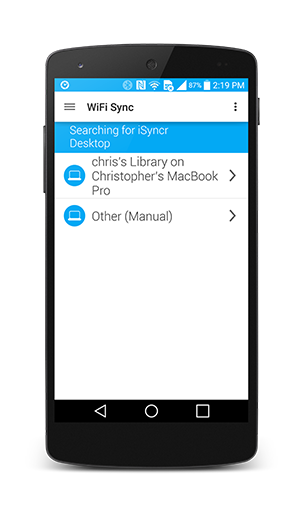
The default password is "Password" on a PC, "Password1" on a Mac. To change your password, access iSyncr Desktop on your computer and select "Settings/Options > Server Settings > Password".
First, have you verified that both your computer and Android are connected to the same WiFi network? Also, if you are using a corporate, university, or public WiFi hotspot, keep in mind that such networks often have firewalls in place to prevent network traffic between connected devices, so for best results we recommend using a home WiFi network.
Second, make sure you've configured your computer's firewall according to our recommendations:
PC - Windows 7
Mac – OS X
Third, have you tried making a manual connection with iSyncr Desktop?
Oftentimes a manual connection will work even when auto-discovery doesn't. To make a manual connection, click on the WiFi tab and then click on the Other (Manual) button. Then enter in the IP address of your computer and the server port (34000 by default). If you don't know what your computer's IP address is, the iSyncr Desktop application's settings dialog should show a list of IP addresses owned by your computer under the WiFi tab. The address you want probably starts with "192" or "10". You can also use this tutorial on manual connections with iSyncr for help.

iSyncr seems to be downloading my songs and playlists to the wrong storage drive on my Android. How do I tell iSyncr which drive to sync to?
Here is a tutorial on how to sync to the SD Card over WiFi
Note that for some devices, the names of the drives options are reversed from what you would expect; this is because some devices use non-default storage drive paths for internal vs. external storage. This is especially common when using third-party ROMs such as Cyanogenmod. Reverse the storage paths and sync as you normally would.
After a sync, my playlists don’t show up in my music player. Why not?
Here are some suggestions to help make sure your playlists show up in your music player:
If you turn on the “Delete Abandoned” option, then any songs that are not a part of a selected playlist will be automatically removed during your next sync to save space for the songs that are in your selected playlists. To turn this option on, go to Tools -> Settings -> WiFi Sync and check the box next to “Delete Abandoned”.
My album art doesn’t appear to be syncing? Are you using the very latest version of the iSyncr desktop application for your PC or Mac? Visit iSyncr's product page to download the latest desktop application. Also make sure that you’re using the latest version of the iSyncr for PC or iSyncr for Mac apps from the Google Play Store or Amazon Appstore. If this does not work, please contact us.
Play-counts don’t seem to be syncing?
Here are the basic steps for getting play-counts to work properly:
My ratings don’t seem to be syncing?
Here is some advice for getting ratings to sync properly:
I’ve got some songs on my Android which I want to sync to my Mac or PC. How do I do this?
This feature is called “Amazon MP3 Uploads”, although it can be used to upload any MP3s or M4As that are on your Android. It’s called Amazon MP3 Uploads because it is designed by default to work well with downloaded Amazon MP3s.
To turn on this feature, go to Tools -> Settings -> WiFi Reverse Sync -> and check the “Upload Amazon MP3s” option. Then set the Amazon Folder to the appropriate folder name. Note that the Amazon Folder is not a full path; it’s the “partial path” of the folder under your storage drive(s) where iSyncr should scan for music to upload. For example, if your Android’s storage root is at “/mnt/sdcard” and your MP3s are in “/mnt/sdcard/amazonmp3”, then you should set this to “amazonmp3” because the app will append “amazonmp3” to “/mnt/sdcard” to determine the full path of files/folders to scan.
In the iSyncr desktop application’s settings, I’ve got my Amazon MP3 Path set to the “Automatically Add to iTunes” folder, and I’m seeing some really weird behavior when reverse syncing MP3s. How come?
We don’t recommend setting your Amazon MP3 upload folder to the “Automatically Add to iTunes” folder because reverse syncing with iSyncr won’t work very well. The reason is that iTunes automatically detects any files placed into that directory and automatically moves them to an alternate location on disk, making it impossible for iSyncr to add these same songs to the “iSyncr - Amazon MP3s” playlist. For this reason, we recommend choosing an alternate upload folder.
If this does not work, try to connect to iSyncr Desktop using a manual connection along with adjusting the IP address that is used.
Installation and Setup
I downloaded and installed the iSyncr Desktop application to my computer from your website, but I can not open it?
Are you sure it is not already running? iSyncr Desktop runs either in the system tray in the bottom right corner of your screen (Windows) or in the main menu bar in the top right of your screen (Mac OS), where you should see an S icon where you can access your server settings. On Windows, sometimes the icon is hidden by an upward arrow.
Right click this icon to toggle settings or options, check for updates and view the FAQs.
How do I connect over WiFi?
After you have determined that the iSyncr Desktop is running on your computer, connect to it from the iSyncr app on your Android just by clicking on the WiFi tab. If auto-discovery is working properly, your computer should show up in the list and you should be able to click on it.
Password and changing password
The default password is "Password" on a PC, "Password1" on a Mac. To change your password, access iSyncr Desktop on your computer and select "Settings/Options > Server Settings > Password".
Connection Problems
I can’t seem to connect to my computer’s iTunes library from the iSyncr app on my Android. Any suggestions?First, have you verified that both your computer and Android are connected to the same WiFi network? Also, if you are using a corporate, university, or public WiFi hotspot, keep in mind that such networks often have firewalls in place to prevent network traffic between connected devices, so for best results we recommend using a home WiFi network.
Second, make sure you've configured your computer's firewall according to our recommendations:
PC - Windows 7
Mac – OS X
Third, have you tried making a manual connection with iSyncr Desktop?
Oftentimes a manual connection will work even when auto-discovery doesn't. To make a manual connection, click on the WiFi tab and then click on the Other (Manual) button. Then enter in the IP address of your computer and the server port (34000 by default). If you don't know what your computer's IP address is, the iSyncr Desktop application's settings dialog should show a list of IP addresses owned by your computer under the WiFi tab. The address you want probably starts with "192" or "10". You can also use this tutorial on manual connections with iSyncr for help.
Syncing Songs and Playlists
iSyncr seems to be downloading my songs and playlists to the wrong storage drive on my Android. How do I tell iSyncr which drive to sync to?
Here is a tutorial on how to sync to the SD Card over WiFi
Note that for some devices, the names of the drives options are reversed from what you would expect; this is because some devices use non-default storage drive paths for internal vs. external storage. This is especially common when using third-party ROMs such as Cyanogenmod. Reverse the storage paths and sync as you normally would.
After a sync, my playlists don’t show up in my music player. Why not?
Here are some suggestions to help make sure your playlists show up in your music player:
- The media scanner runs after each sync to determine the current state of songs and playlists - this media cache is usually what music apps use to determine which songs and playlists are available on your Android. Sometimes the media scanner takes a few minutes to run, so sometimes just waiting a few minutes after a sync can make sure your playlists show up.
- If you want to force a media rescan, you can do so via Tools -> Settings -> Media Scanner -> Rescan for media.
- Sometimes, it helps to reboot the Android device and/or remove the battery. Give that a try.
- Do you have Auto Clean Playlists turned on under Tools -> Settings -> Auto Clean Playlists? If so, it might help to turn it off and then sync or rescan again.
- Sometimes the media cache gets out of sync and needs to be cleared. Try this: Home -> Settings -> Applications -> Manage Applications -> Media Store -> Clear Data. Then reboot your Android to force the cache to be rebuilt.
- Try using a different 3rd party music application to view your playlists like JRT Studio's own Rocket Music Player
If you turn on the “Delete Abandoned” option, then any songs that are not a part of a selected playlist will be automatically removed during your next sync to save space for the songs that are in your selected playlists. To turn this option on, go to Tools -> Settings -> WiFi Sync and check the box next to “Delete Abandoned”.
My album art doesn’t appear to be syncing? Are you using the very latest version of the iSyncr desktop application for your PC or Mac? Visit iSyncr's product page to download the latest desktop application. Also make sure that you’re using the latest version of the iSyncr for PC or iSyncr for Mac apps from the Google Play Store or Amazon Appstore. If this does not work, please contact us.
Play-counts don’t seem to be syncing?
Here are the basic steps for getting play-counts to work properly:
- You should have "Play-Count Logging" enabled in Tools -> Settings -> Play-counts in the iSyncr Android app.
- You need to make sure that your music player is configured correctly so that iSyncr can record play-counts. Generally speaking, the stock Android music player should "just work", but if you have a 3rd-party music player from the Android Market then you might need to configure it for scrobbling. The iSyncr Advanced FAQ has a good list of instructions for configuring various music players. If you download and use our free Rocket Music Player app, then play-counts should record by default.
My ratings don’t seem to be syncing?
Here is some advice for getting ratings to sync properly:
- Which music player are you rating your music with? Both Rocket Music Player and PlayerPro support ratings integration with iSyncr, but for other music players you’ll need to use our “Music Ratings” widget on a home screen. Just long-press an empty spot on your home screen and choose “Music Ratings” under widgets. Configure this with your favorite music player and use it to rate your songs on your Android.
I’ve got some songs on my Android which I want to sync to my Mac or PC. How do I do this?
This feature is called “Amazon MP3 Uploads”, although it can be used to upload any MP3s or M4As that are on your Android. It’s called Amazon MP3 Uploads because it is designed by default to work well with downloaded Amazon MP3s.
To turn on this feature, go to Tools -> Settings -> WiFi Reverse Sync -> and check the “Upload Amazon MP3s” option. Then set the Amazon Folder to the appropriate folder name. Note that the Amazon Folder is not a full path; it’s the “partial path” of the folder under your storage drive(s) where iSyncr should scan for music to upload. For example, if your Android’s storage root is at “/mnt/sdcard” and your MP3s are in “/mnt/sdcard/amazonmp3”, then you should set this to “amazonmp3” because the app will append “amazonmp3” to “/mnt/sdcard” to determine the full path of files/folders to scan.
In the iSyncr desktop application’s settings, I’ve got my Amazon MP3 Path set to the “Automatically Add to iTunes” folder, and I’m seeing some really weird behavior when reverse syncing MP3s. How come?
We don’t recommend setting your Amazon MP3 upload folder to the “Automatically Add to iTunes” folder because reverse syncing with iSyncr won’t work very well. The reason is that iTunes automatically detects any files placed into that directory and automatically moves them to an alternate location on disk, making it impossible for iSyncr to add these same songs to the “iSyncr - Amazon MP3s” playlist. For this reason, we recommend choosing an alternate upload folder.
Error Codes
Error code 6
The most common reason for error code 6 is that your iTunes COM registration is messed up on your computer and needs to be reset. Here's the easiest way to do that:- Start -> Uninstall a Program
- Click on iTunes
- Click on Repair
- Follow the steps to repair your iTunes installation
- Quit iSyncr Desktop from your device, then reopen it
- Close then reopen iTunes
Error code 13
Error code 13 means that the app tried to open a socket connection to the iSyncr Desktop application running on your computer, but the connection couldn't get established. Here are the main causes of this problem:- The WiFi on the Android went to sleep. Make sure your WiFi Sleep Policy is set to Never, and try to keep your Android plugged into a power source while syncing to help prevent this. Sometimes the WiFi will even go to sleep if the screen turns off, so it can sometimes help to increase your screen timeout.
- Sometimes this can happen if your WiFi router cuts off WiFi access from your Android device. This can happen for a variety of reasons, but it helps to make sure you have a strong WiFi connection while syncing. Additionally, sometimes you can improve connection stability by adjusting the security or speed settings; for example some routers work better with WPA than with WEP, and some routers work better with a "pure" speed such as 802.11n instead of a hybrid speed like 802.11b/g/n.
- If iSyncr Desktop gets closed accidentally or crashes, this error can also occur, so make sure iSyncr Desktop is still running on your computer.
Error code 16
This error can be resolved by adjusting iSyncr Desktops password. Here's a tutorial on updating your iSyncr Desktop password.If this does not work, try to connect to iSyncr Desktop using a manual connection along with adjusting the IP address that is used.
Error code 19
Error code 19 means that there was a timeout retrieving your list of playlists from iSyncr Desktop. Sometimes this can happen if your iTunes or computer is running slow, or perhaps if you've got open dialogs in iTunes while trying to sync. Make sure you’ve closed any open dialogs in iTunes and that your computer isn’t running too slowly from running too many open applications.Error code 25
Error code 25 means that we're timing out when we try and sync play-counts. To resolve this issue, we can delete the iSyncr.xml file, this will remove all the play-counts that have been created from the date of the last sync until now. To do this, use a file management application like ES File Explorer, go to the "syncr" folder, and long press on the iSyncr.xml file. When we do this, select "Delete" from the options.Error code 31
Error code 31 means that there was an I/O error while trying to download a file to your Android. The most common cause of this, in my experience, is a corrupt SD card. Here's what I would try: First, just reboot your Android and try again. Sometimes this can cause I/O errors to go away with minimal effort required. If that doesn't work, I'd recommend backing up the contents of your SD card and then formatting it, and then restoring your data and trying to sync again. Oftentimes this will fix I/O errors like this.Error code 49?
The error code you are seeing means that iSyncr tried to connect to the computer, but couldn't make a connection. Try making a manual connection, and confirm that your firewall has allowed iSyncr Desktop access.
Did this FAQ not answer your question?
Contact Us