
Firewall Guide for Windows 7, 10
Here's our Windows 7 Firewall Guide
Follow these steps to configure your Windows Firewall in Windows 10:
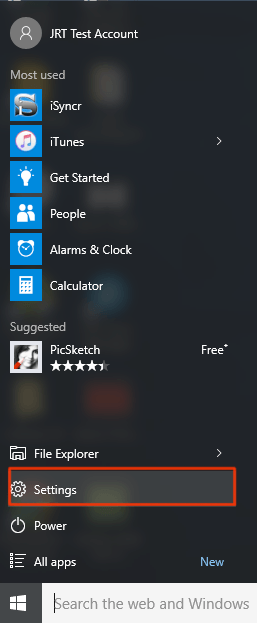
- Open "Settings"
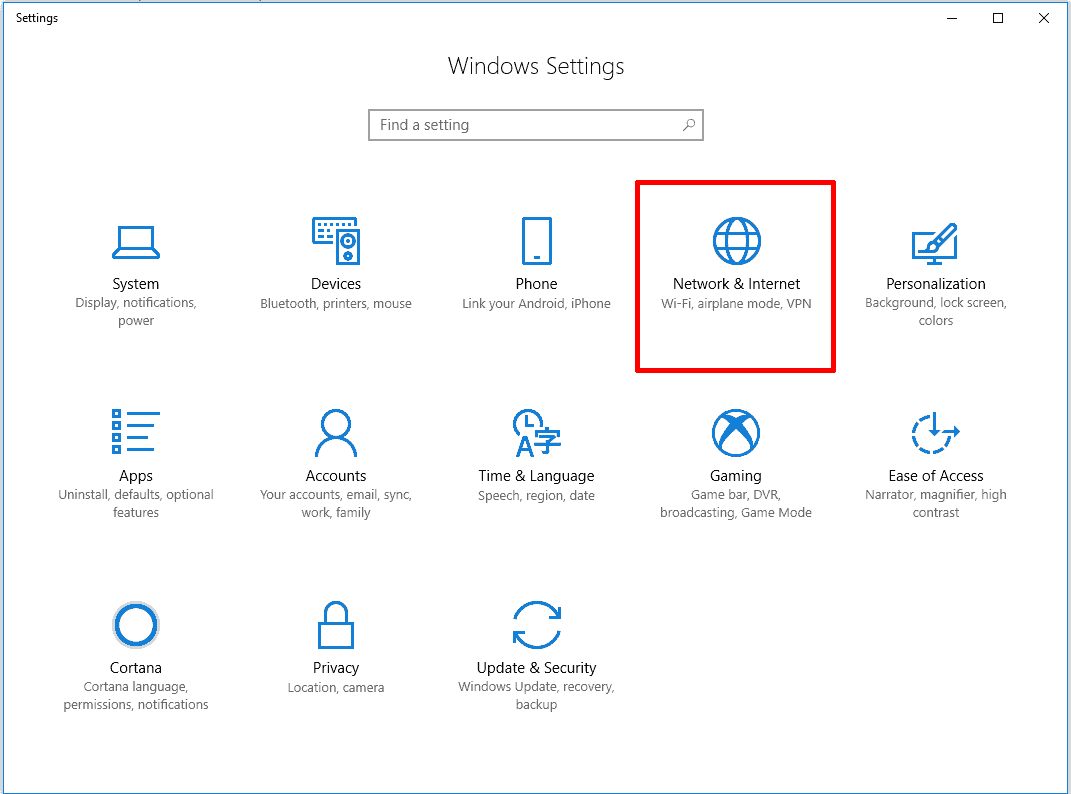
- Click on "System and Security".
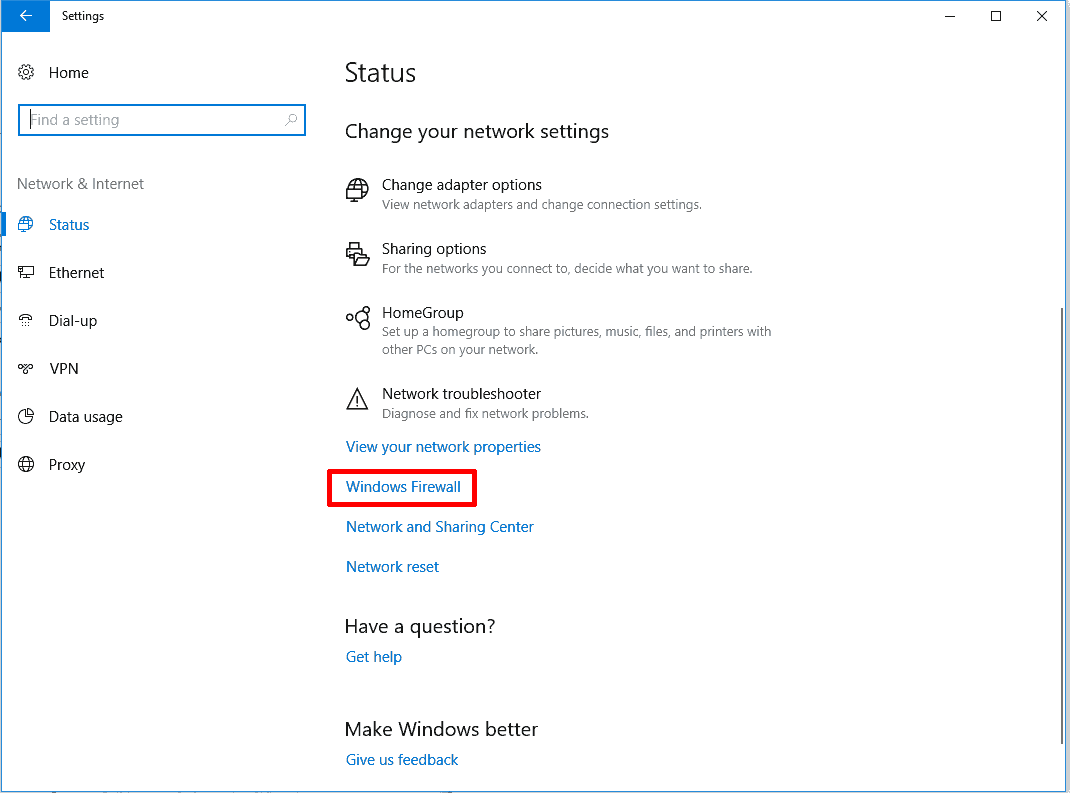
- Click on "Windows Firewall".
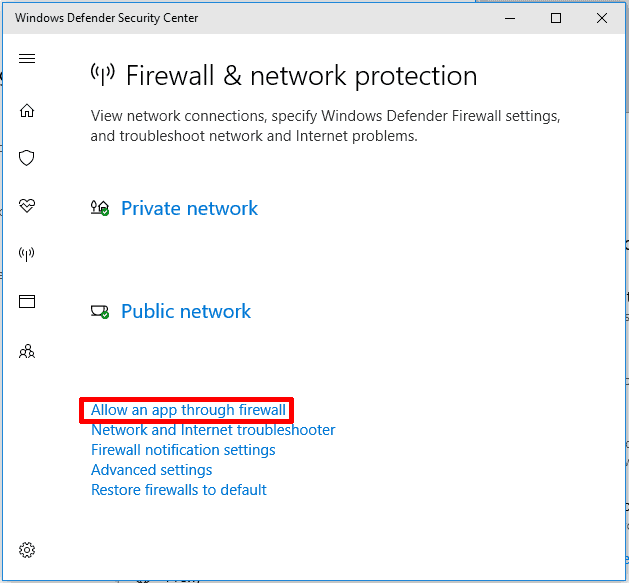
- Click on "Allow a program through Windows Firewall".
- Click on "Change settings".
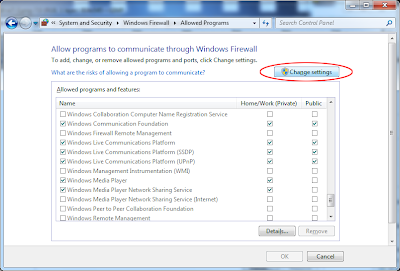
- Find "iSyncr" or "iSyncrWiFi" in the list and check both "Home/Work (Private)" and "Public". Click "OK". Go back to previous page.

- Go back to the firewall settings and click on "Advanced settings".
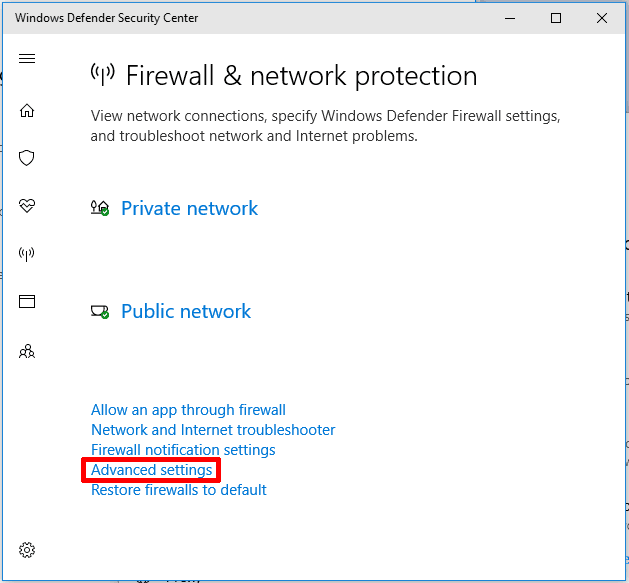
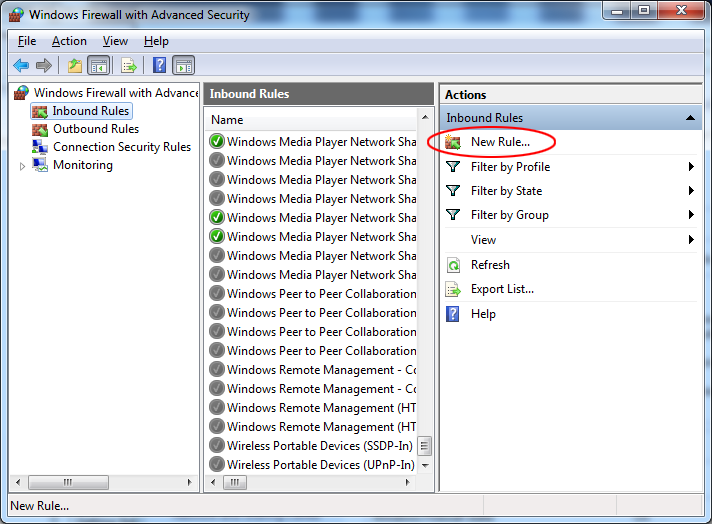
- Click on "Inbound Rules". Click on "New Rule..."

- Click on "Port". Click Next.
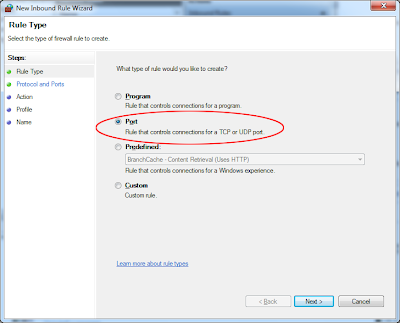
- Click on TCP. Type "34000" into the "Specific local ports" text field, unless you're using an alternate port number in your iSyncr Desktop settings. If so, enter that port number. Click Next.

- Click on "Allow the connection". Click Next.
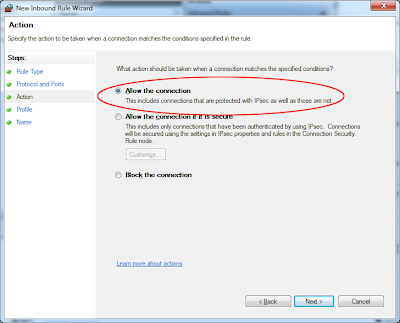
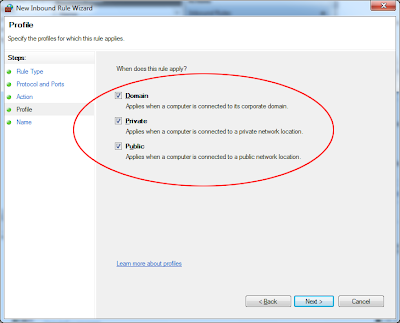
- Ensure that "Domain", "Private", and "Public" are all checked. Click Next.
- Type "Port 34000" into the "Name" text field. Click Finish. You're done!




Wireless Router Configuration
In some cases, you might need to tweak your wireless router settings in order for iSyncr to connect. This is because some wireless routers might have a built-in firewall preventing traffic, or it might be preventing multicast packets. Steps for configuring your wireless router:
- Access your wireless router's settings.
- Enable multicast packets. This eHow guide should give you a good idea of how to do this.
- Configure the firewall. Routers vary greatly from model to model, but there may be an option to allow traffic to iSyncr's port (34000 by default).
Other Connection Tips
- Make sure you're close enough to your wireless router to have a strong WiFi signal.
- Confirm antivirus and other software has been configured to allow the iSyncr application to connect to your computer.
- Rebooting the router, phone, and/or computer sometimes helps.
- Turning Bluetooth off sometimes improves WiFi connectivity.
- Changing the router's wireless security type sometimes helps.
- Changing the router's wireless speed sometimes helps.
- Changing the router's wireless channel sometimes helps.
- If your router supports multiple bands (e.g. a 3G & 5G connection) making sure both devices are on the same network
- It's worth mentioning that corporate, university, or public WiFi hotspots often have a built-in firewall in the wireless router which automatically prevents any kind of network traffic between connected devices. Unfortunately, iSyncr cannot circumvent this kind of network restriction; for this reason we generally recommend our users to use a home wireless network if at all possible.
Still can't connect?
Oh no! Try a manual connection! or workaround the issue by connecting over USB!Need Help? Contact us!